 By Seb Place
5 minute read
How to switch to Octopus Energy: a screen-by-screen guide (2026)
TL;DR
A visual walkthrough of switching to Octopus Energy using a refer-a-friend link, with screenshots of every screen: postcode entry to direct debit setup, plus what happens in the 2–3 weeks after you click switch.
If you just need the link, you can get your Octopus Energy referral code here.
Affiliate disclosure: this post contains an Octopus Energy referral link. If you use it, both of us get £50 bill credit: the same £50 any Octopus referral earns, just attributed to me. It doesn't change the price you pay.
I switched to Octopus Energy in September 2019 from EDF, using a referral link a friend sent me. The whole sign-up took about five minutes on my phone, the £50 credit landed after my first direct debit, and I've been a customer ever since. Read my full six-year Octopus Energy review for the longer take.
The walkthrough above is the same flow in under three minutes, if you'd rather watch it than read it.
What do you need to switch to Octopus Energy?
Two things, and that's it:
- Your postcode: Octopus uses it to identify your meter and pull the right tariffs.
- Your bank details (sort code and account number): for the direct debit.
You don't need a meter reading at sign-up; Octopus asks for one a few days after you confirm. You don't need your current supplier's name either; Octopus picks it up from the address records and handles the switch with them on your behalf.
Use a referral link
From this page, click the 'Use referral link' button. This takes you to the Octopus sign-up flow with the £50 referral credit pre-attached: no code to type, no separate field to fill in.
Enter your postcode
Octopus uses your postcode to identify your local distribution network and pull the right tariffs for your area. You don't need to type your current supplier; Octopus picks it up from the address records.
Confirm your address and current usage
Pick your specific address from the dropdown if you live in a flat or shared building, then either accept the estimated annual usage Octopus shows or enter your own figures from a recent bill for a more accurate quote.
See your quote and pick a tariff
Octopus shows your monthly direct debit estimate alongside the tariffs available at your address. Click into any tariff for a detailed breakdown of unit rates, standing charges, and exit fees.
Add your personal details
Enter your name, date of birth, email, and phone number. Octopus uses the email as your account login and the phone number for switch-status texts in the following two weeks.
Set up your direct debit
Enter your sort code and account number to authorise the direct debit. Octopus only takes one payment a month, on a date you can change later in the app. The first payment lands roughly four weeks after your switch goes live.
Review and confirm the switch
Final summary screen: tariff, monthly direct debit, switch date, and your contract terms. Read and accept the term and conditions. Click 'Switch to Octopus' and you're done. Octopus emails a confirmation within minutes and handles the rest with your old supplier in the background.
Step 1: Use a referral link
From this page, click the 'Use referral link' button to start your switch, or use the Octopus Energy referral page directly. Either way, the £50 referral credit is pre-attached to the link; there's no code or coupon field on the Octopus side. If you have any friends or family who are with Octopus, ask them for their referral link and use that instead so both of you get £50.
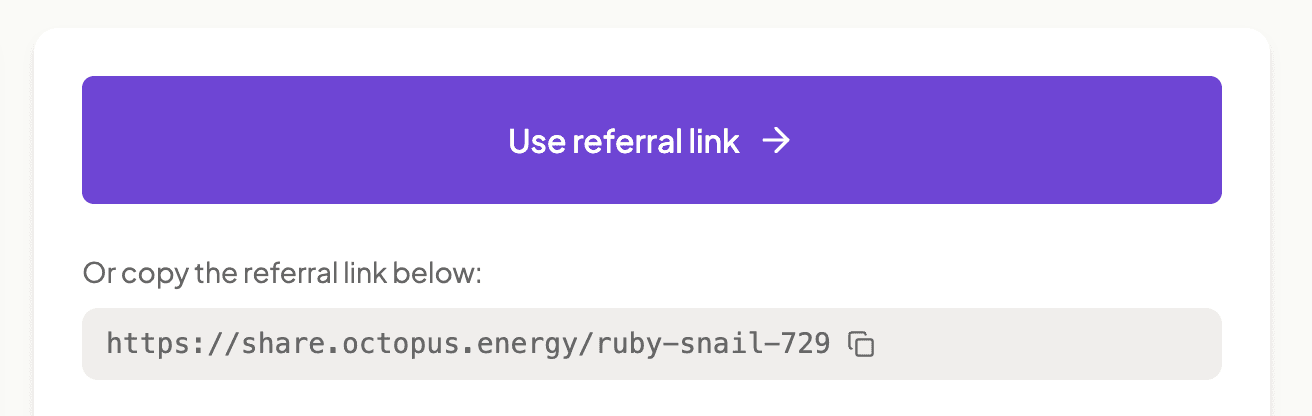
The link takes you straight to Octopus's sign-up flow with referral tracking already in place. If you're using a referral link from anywhere else (a friend's WhatsApp message, a Reddit thread), the same thing happens: the link itself is what tracks the £50.
Step 2: Enter your postcode
The first Octopus screen asks for your postcode. This is how Octopus identifies your local distribution network and pulls the tariffs available at your address.
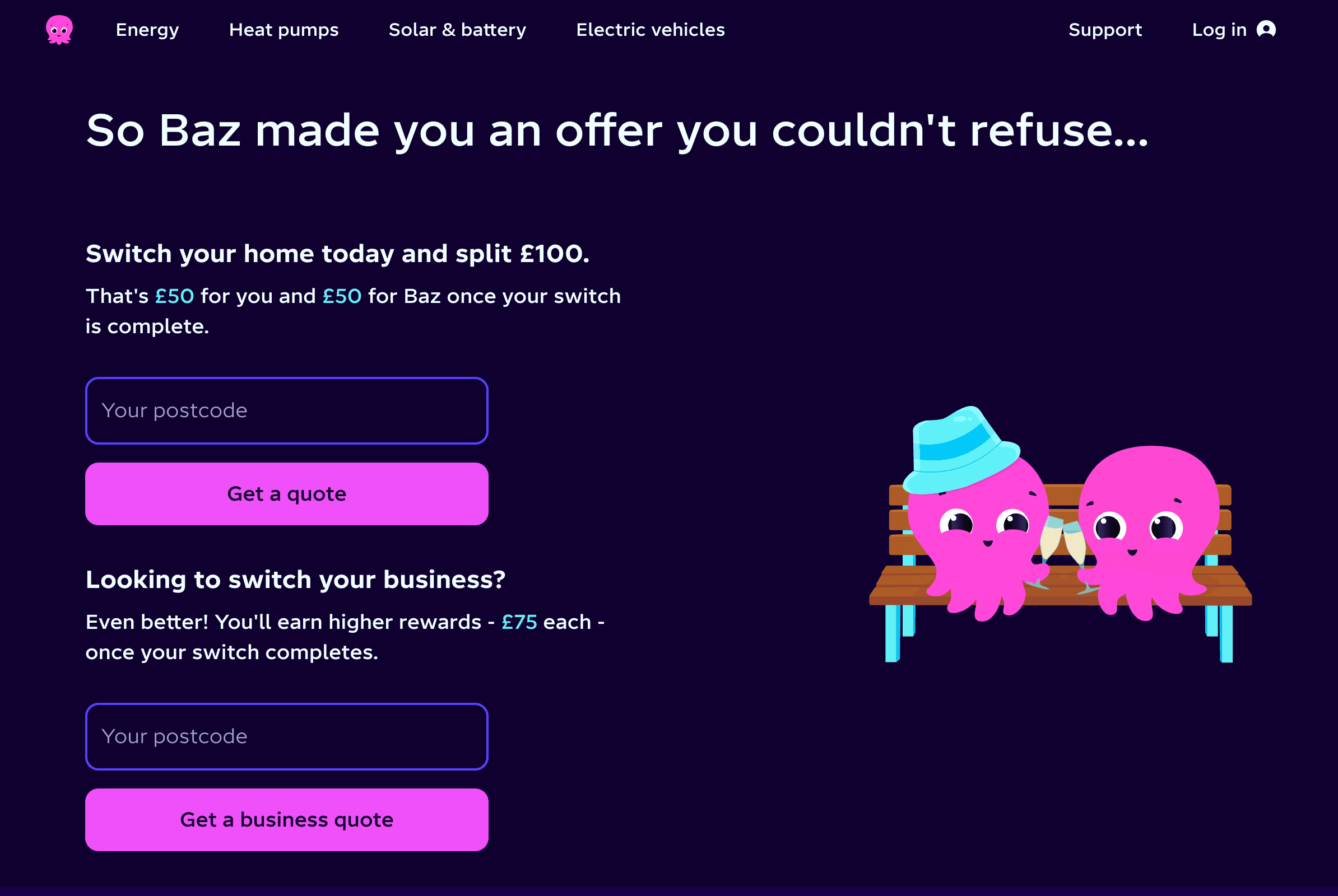
You don't need to type your current supplier; Octopus identifies who's currently supplying the property from the postcode and meter records, and handles the switch with them automatically. When I did this in 2019, I was on EDF and didn't have to mention it once.
Step 3: Confirm your address and current usage
Octopus shows the addresses at your postcode; pick yours. If you live in a flat or shared building, the dropdown lists each property separately.
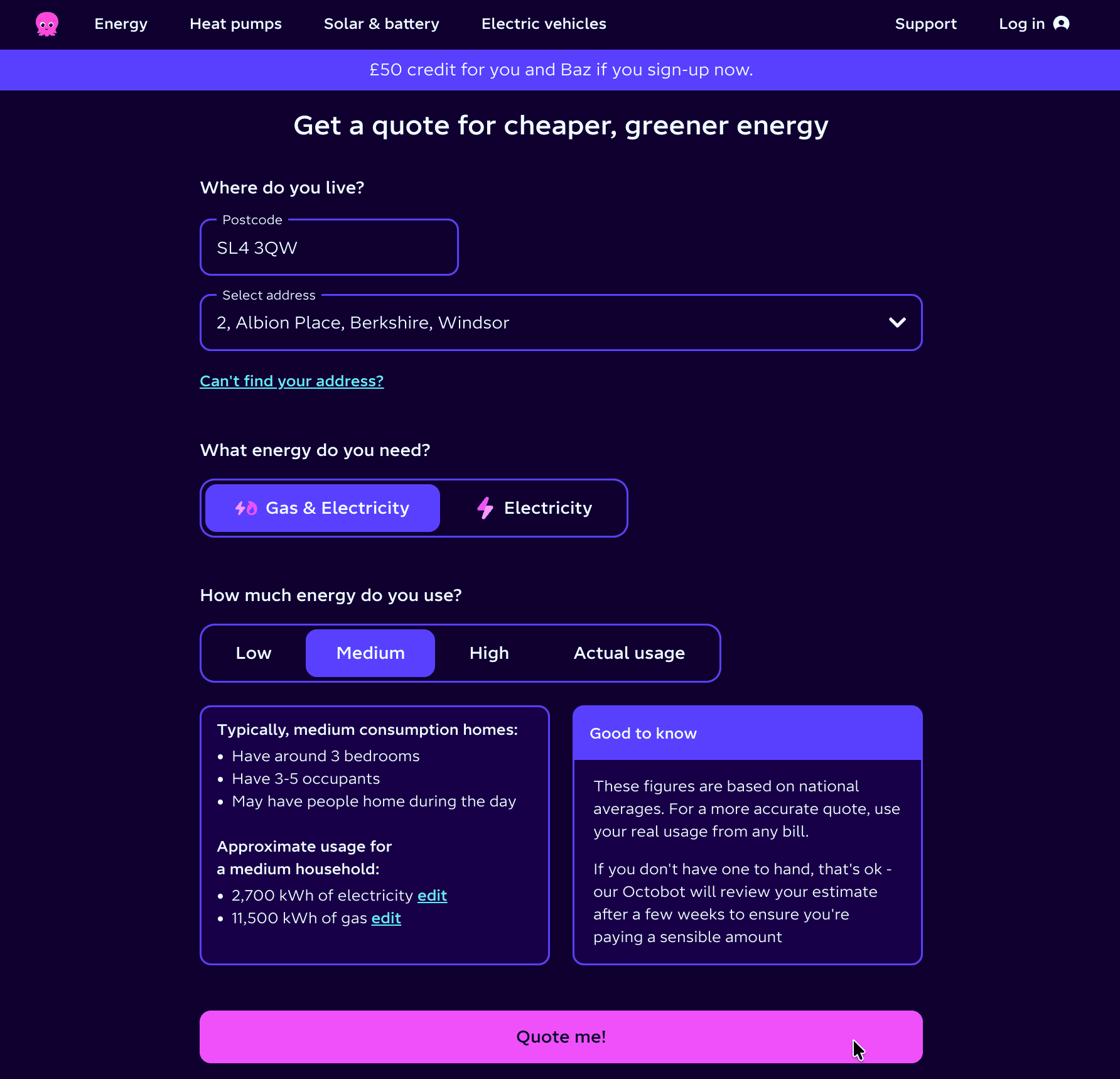
You'll then see an estimated annual usage based on the property type. You can either accept the estimate or enter your own figures from a recent bill (look for the kWh totals). I'd recommend entering your real figures if you have them; the quote on the next screen is only as accurate as the usage numbers behind it.
Step 4: See your quote and pick a tariff
Octopus presents your monthly direct debit estimate alongside the tariffs available at your address. The default selection is usually Flexible Octopus (their standard variable tariff) but you can switch to any tariff your meter type supports.
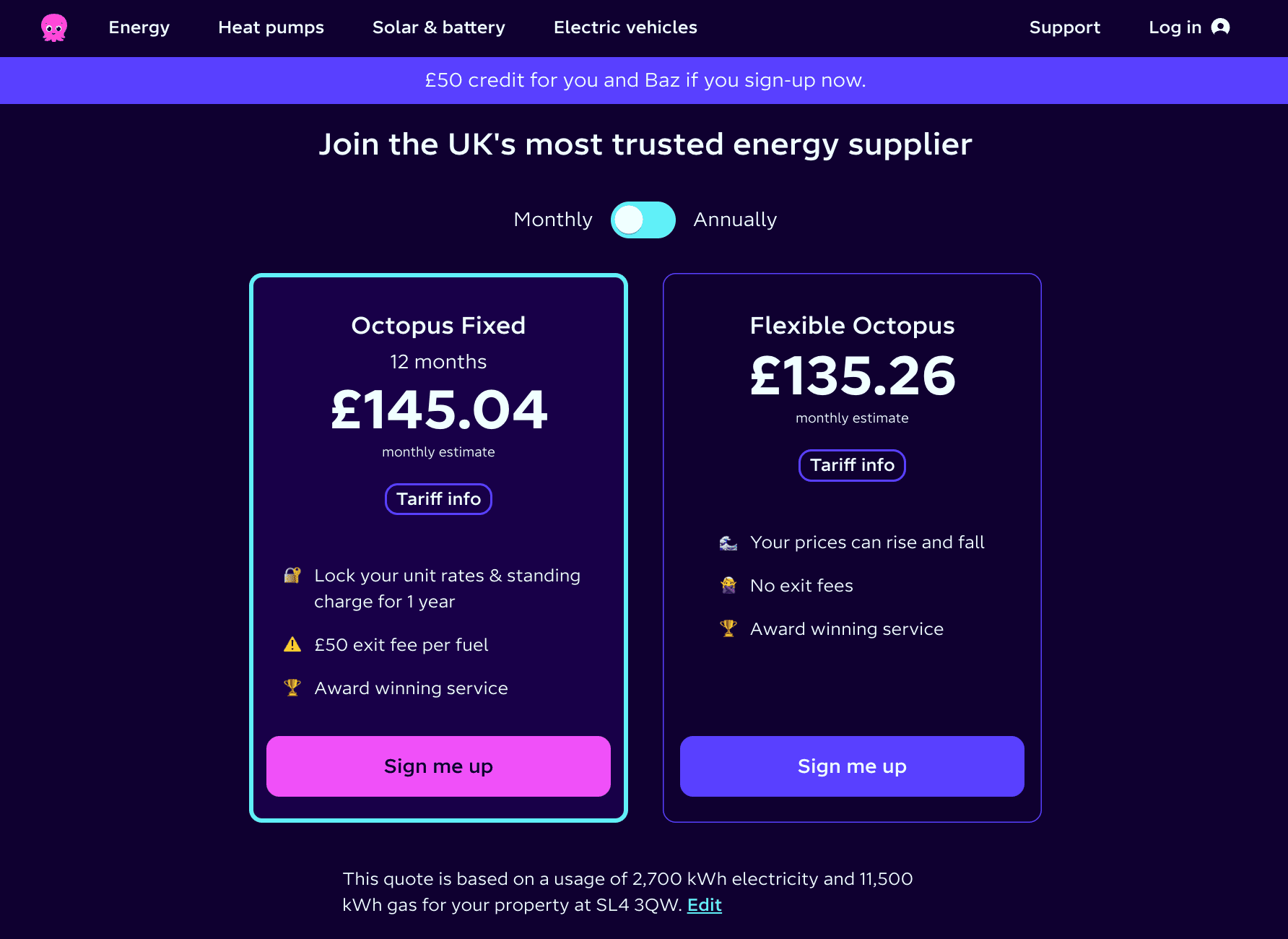
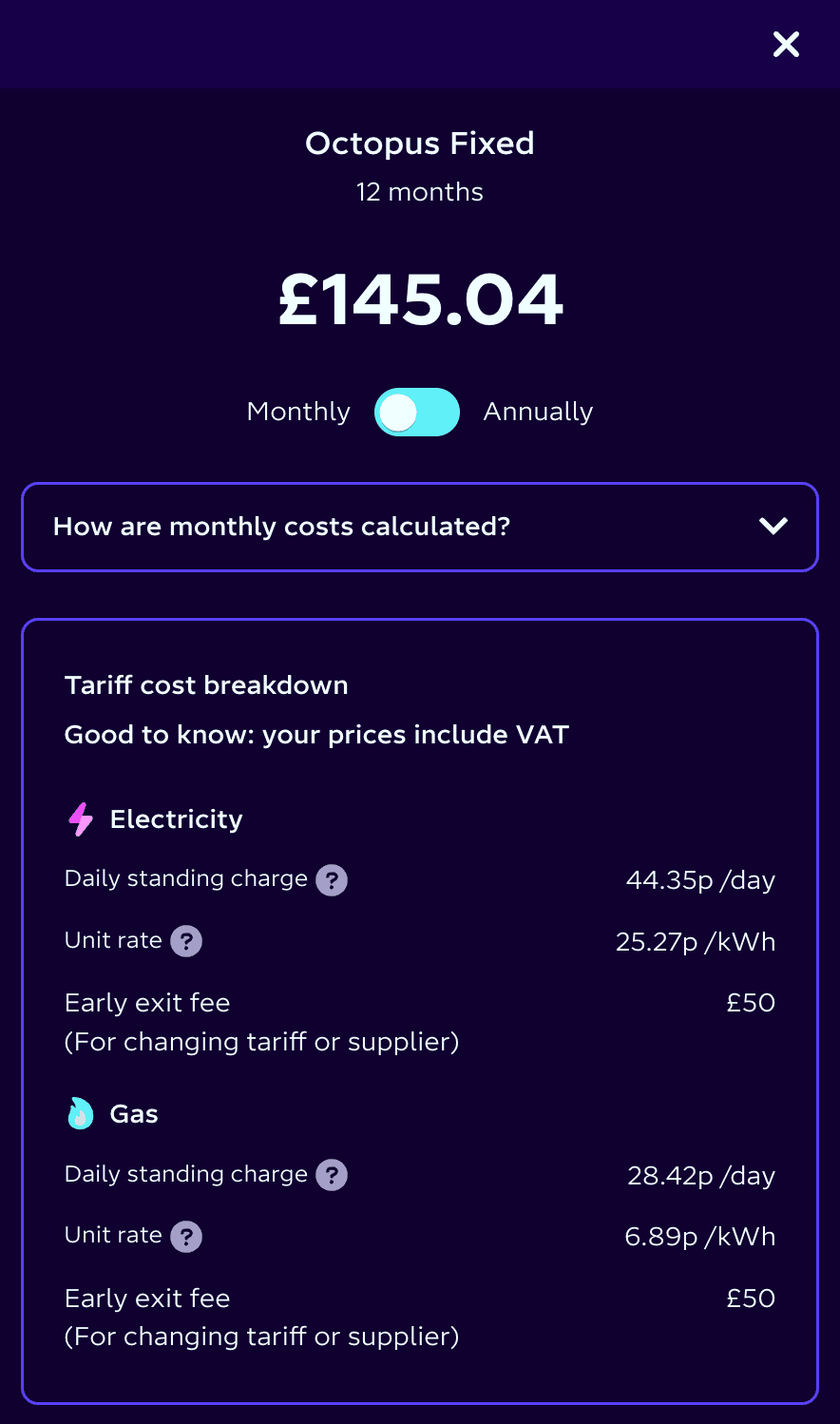
Click into any tariff for the detail screen: unit rate per kWh, daily standing charge, contract length, exit fees if any, and the small print on smart-meter requirements.
Which tariff is best depends on your setup: EV owners, heat pump households, and engaged switchers all have better options than the standard Flexible tariff. For a 2-minute decision guide, see which Octopus tariff is right for you. Whichever you pick, the £50 referral credit applies the same way.
Step 5: Add your personal details
Standard sign-up form: name, date of birth, email, and phone number.
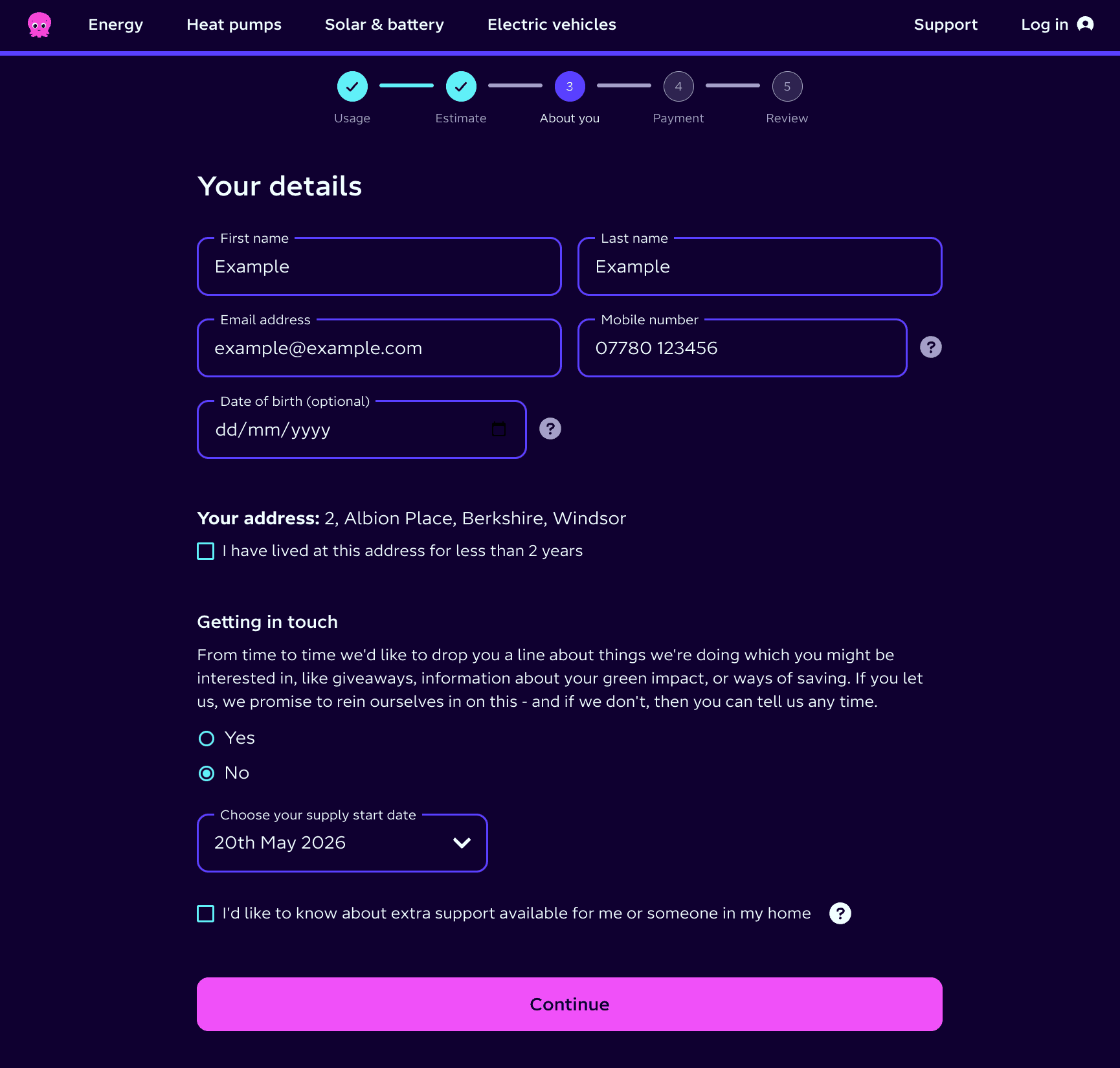
The email becomes your Octopus account login and the address Octopus sends bills, switch updates, and the £50 credit confirmation to. The phone number is used for switch-status texts in the following two weeks; Octopus texts you when each milestone happens (account created, switch booked, switch live).
Step 6: Set up your direct debit
Enter your sort code and account number. Octopus takes one direct debit a month, by default on the first working day of the month, but you can change the payment date later in the app or web account.
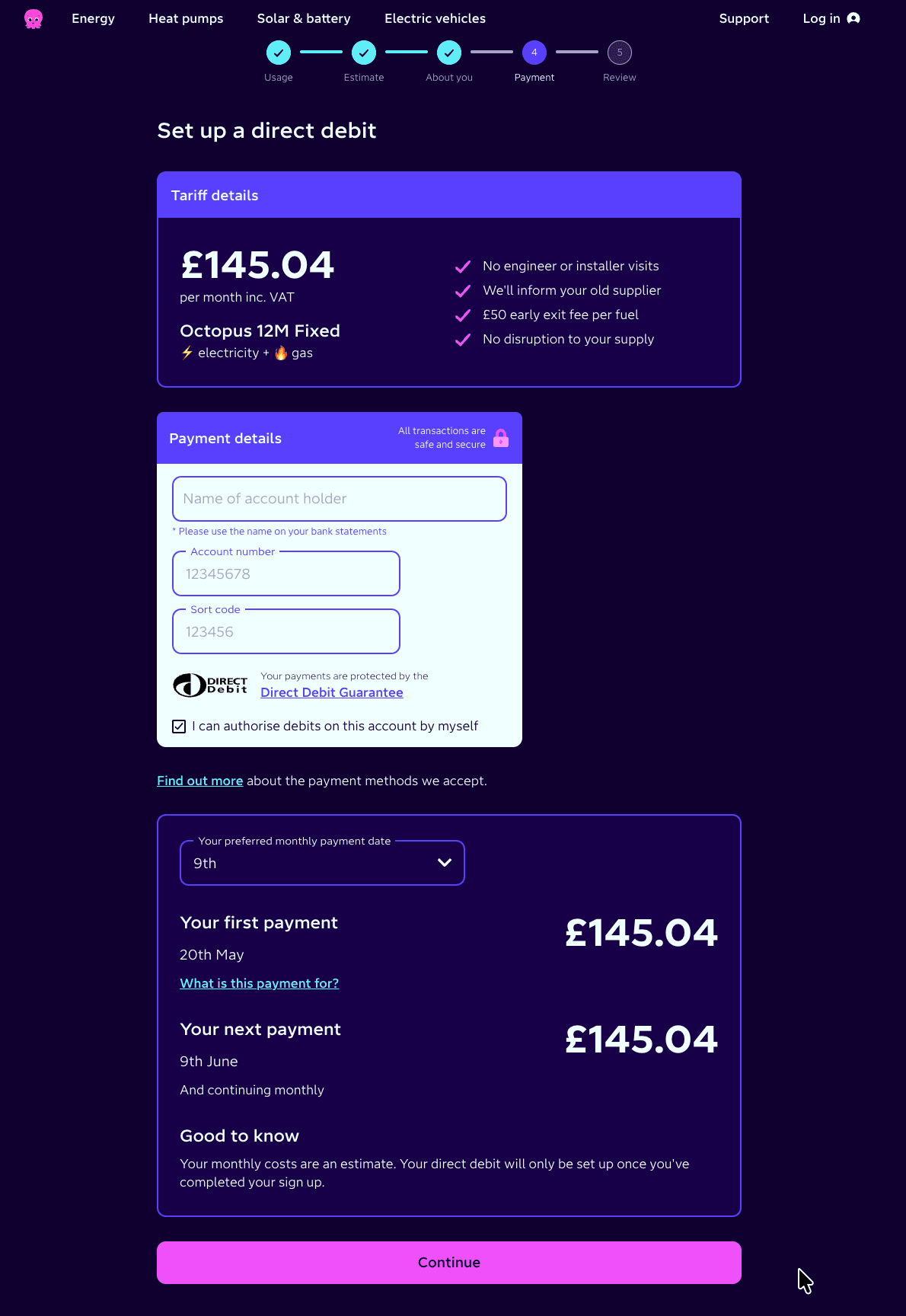
Your first direct debit lands roughly four weeks after your switch goes live (which is itself 2–3 weeks after this sign-up), so the first payment comes out about 6–7 weeks from today. The £50 referral credit is applied to your account just after that first direct debit clears.
Step 7: Review and confirm the switch
Final summary screen: chosen tariff, monthly direct debit estimate, switch date, and the contract terms. Read it, scroll to the bottom, accept the terms and conditions and click "Switch to Octopus".
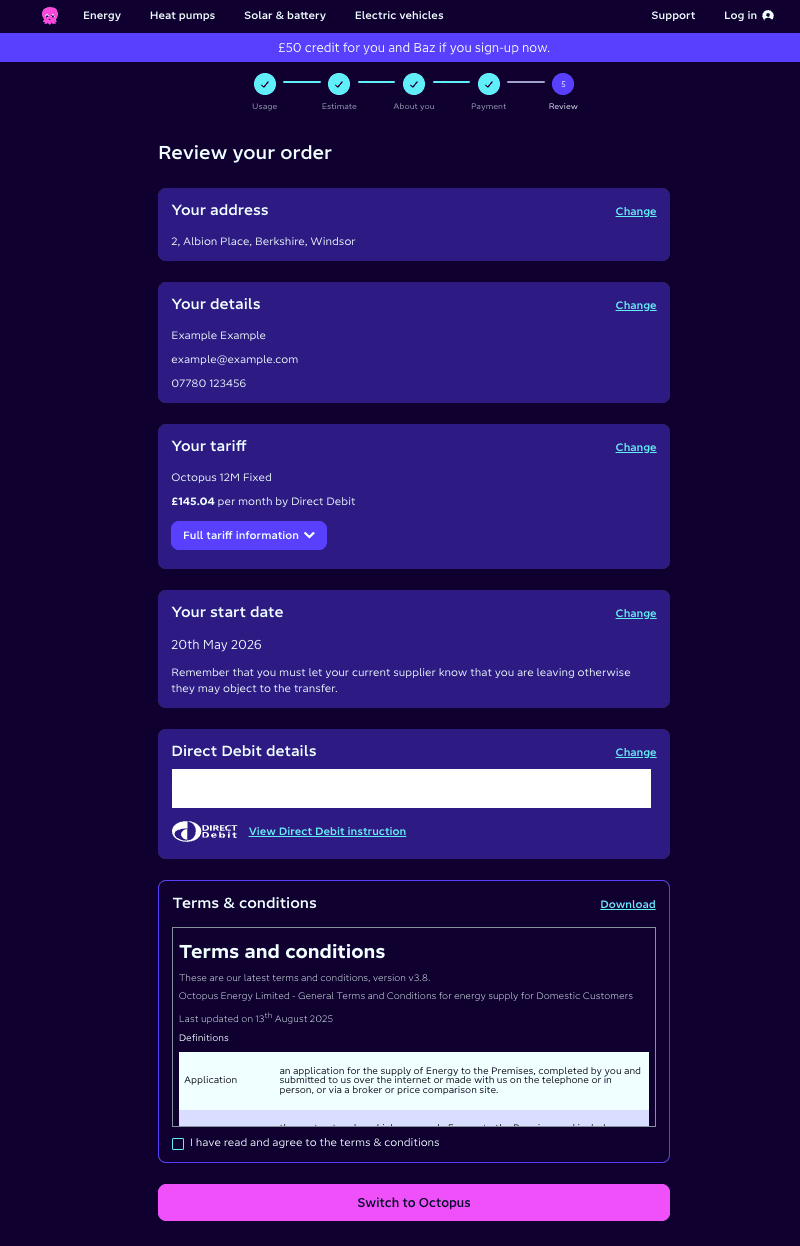
That's it. The switch is in motion. Octopus emails a confirmation within minutes and handles everything with your old supplier in the background. No phone calls, no forms to forward, no notice to give.
How long does the switch to Octopus take?
The post-switch timeline, in plain numbers:
- Within 24 hours: confirmation email from Octopus with your account number, tariff details, and a link to the Octopus app to download.
- Within 7 days: Octopus emails or texts asking for opening meter readings (if you have a non-smart meter). Take a photo of the meter face on the day they ask, send the numbers via the app or website, and you're done.
- 2–3 weeks after sign-up: switch goes live. Your supply doesn't change at all; only the company billing you changes. Your old supplier sends a final bill (or refund) within 4–6 weeks of the switch date.
- About 4 weeks after the switch goes live: your first Octopus direct debit comes out, and shortly after, the £50 referral credit appears on your account as a balance adjustment. You can use it against future bills or, if you build up enough credit, request a refund to your bank account.
If you're switching during a house move, the timing's slightly different. See can I switch energy supplier if I'm moving house for the move-specific flow.
Full video transcript
Hello. Today I'm going to show you how you can get £50 off when you join Octopus Energy using a referral link.
So, first step is to find a referral link. You can either chat to your friends and family who might be on Octopus already and get one from them, or if you're in a rush, go to referralplug.co.uk and grab one from there.
If you're on Referral Plug, just use the "use referral link" button. That'll take you to Octopus. First step of the switch process is to enter your postcode. Next, just select your address from the drop-down. And then you can choose: do you want to transfer your gas and electricity, or just your electricity?
You then have to choose what your estimated energy usage is. You can either select low, medium, or high, or if you know your actual figures, then you can plug those in. You can choose to send the quote to your email address or not. For this example, I'm not going to.
Next step will show you your tariffs available at your property. In this case, we've got fixed or flexible. You can choose whether it's showing the annual or monthly figures up the top, and you can click "tariff info" if you want to get more information about the specific tariff.
Next steps are to just fill in your details: your name, email address, mobile number, and optionally your date of birth. And you also need to state when you're planning to switch (when your start date is).
In the next step, this is where you enter your direct debit payment details. You'll just need your full name on your account, your account number, and your sort code. And here you can choose when the payment will be taken out each month.
Lastly is the review page. Just make sure all your details are correct, and finally just read and agree with the terms and conditions before switching. And that's it.
If you'd like more information about the Octopus switch process, head on over to referralplug.co.uk to find out more.
Switching to Octopus Energy FAQs
Will my energy supply be cut off during the switch?
No. Switching energy supplier doesn't involve any physical work at your property; your supply is uninterrupted throughout. Octopus simply takes over billing from your old supplier on the switch date. The same gas and electricity flows through the same meters; only the company sending you bills changes.
Do I need to tell my current supplier I'm switching to Octopus?
No. Octopus handles the entire switch with your old supplier on your behalf; there's no phone call, letter, or notice you need to give. The two suppliers exchange the relevant data behind the scenes and your old account closes automatically on the switch date. You will get a final bill (or refund) from your old supplier within 4–6 weeks.
What if I'm in a fixed-term contract with my current supplier?
If your current tariff has exit fees, you'll be liable for them when you switch. Nobody publishes a market-wide figure, so read your own tariff: the amount per fuel is on your supplier's tariff information sheet and in your annual statement. Two ways to avoid it: (1) wait until you're within 49 days of your fixed term ending (Ofgem rules let you switch in that window with no exit fee); (2) check whether the £50 Octopus credit plus any unit-rate savings outweigh the exit fee. If you're on a standard variable tariff, there are no exit fees and you can switch any time.
Do I need a smart meter to switch to Octopus?
No. You can switch to Octopus and claim the £50 referral credit on any meter type: traditional, smart, or prepayment. Octopus's standard tariffs (Flexible, Fixed) work fine without a smart meter. You only need a smart meter for the smart tariffs (Go, Intelligent, Tracker, Agile, Cosy), and Octopus will install one for free if you decide to move onto one of those after switching.
Can I switch to Octopus if I'm renting?
Yes. If you pay your energy bill directly to the supplier, you have the legal right to switch supplier even as a tenant. Your landlord can't restrict your supplier choice or charge you a switching fee. The £50 referral credit applies the same way it does for homeowners. The exception is if energy is included in your rent (the landlord pays the supplier); in that case only the landlord can switch.
You might also like
- Octopus Energy review: 6 years as a customer
- Which Octopus Energy tariff is right for you?
- Moving house with Octopus Energy: two moves, no phone calls
Sources
- Octopus refer-a-friend (opens in new tab): the reward each side gets, that it arrives as bill credit once the first direct debit has been taken, and that there is no cap on how many people you refer
- Ofgem: switch energy supplier (opens in new tab): that exit fees apply to leaving a fixed tariff early
- Citizens Advice: switch energy supplier or tariff (opens in new tab): how long the switch takes once you have agreed the contract, the window in which your old supplier must send the final bill, the exit-fee-free window before a fixed term ends, that your new supplier contacts your old one for you, and that a tenant billed by the supplier directly can switch
- Octopus smart tariffs (opens in new tab): which tariffs are the smart ones, and so which need a smart meter
- My own Octopus account: the switch itself, the screenshots of every screen in this guide, and what the timeline after it actually looked like

Referral Plug founder · Personal finance writer and UK consumer savings specialist
I specialise in finding people the best deals to cope with the ever-increasing cost of living. I like to review companies from everyday industries like banking and energy and try to provide a fresh mix of facts and unbiased opinions.
Last verified: August 2026 · Last updated